Display Your Own TV Art: TCL, LG, Hisense, Sony and More
Start by finding your TV's model number and the name of its photo feature. For LG, look for Gallery+ or Gallery; on Hisense CanvasTV, look for Art Mode. For TCL personal photos, the route covered here is Google Photos in Ambient Mode.[1][2][4][6]
Match your television to the section below. These steps take you to the starting point; for the screens that follow, use your model's instructions.
For Samsung instructions, see our separate guide to adding your own art to The Frame.
Which TVs can display your own art and photos?
Start with the feature available on your exact television. This table separates manufacturer-specific art features from photo screensavers and connected streaming devices. The regional scope is identified in each row; use your local model guide for the menus on your set.
| Brand or platform / documented scope | Feature | Your own images? | Starting route | Official guide |
|---|---|---|---|---|
| LG / US guidance, supported webOS 25+ TVs | Gallery+ Photos | Yes | External device, LG ThinQ-connected phone, or Google Photos | LG Gallery+ |
| LG / US guidance, webOS 3.5 and 4.0 | Gallery: My Photos | Yes | Gallery > My Photos > Add; select connected storage or captured images | LG Gallery |
| Hisense / US 65S7N CanvasTV | Art Mode | Yes | Connected USB device or photo upload through the Art Mode app | Hisense CanvasTV |
| TCL / US guidance, A300W and supported Google TV models | T-Exhibition; Ambient Mode for personal photos | Yes, through Ambient Mode | Settings > System > Ambient Mode > Google Photos | TCL art and photos |
| Sony / models listed in the US support notice, including X90L | Ambient Mode | Yes | Settings > System > Ambient mode > Google Photo | Sony notice |
| Google TV / Google's English-language help | Ambient Mode | Yes | Ambient mode > Settings > Source > Google Photos | Google TV Help |
| Amazon Fire TV / US guidance, devices with Ambient Experience | Ambient Experience | Yes | Use personal Amazon Photos; check Settings > Display & Sounds for feature availability | Amazon help |
| Roku / US support guidance, devices with Backdrops | Backdrops | Yes | Add your photos > Upload photos; scan the QR code and sign in | Roku help |
| Panasonic / UK TX-77LZ2000B support eHELP | my Scenery | Yes | Home > my Scenery; choose content from the TV or a connected USB device | Panasonic eHELP |
How do LG art TVs show paintings and photos?
On supported LG TVs, Gallery+ displays artwork and personal photos; earlier Gallery software has different controls. LG's US guide lists personal-photo sources as external devices, LG ThinQ-connected phones, and Google Photos.[1][9]
For Gallery+, open Home > LG Gallery+ > My Page and sign in to your LG Account. Choose Photos for your images; Google Photos requires a linked Google account. Availability depends on your model and country.[1]
Looking for the LG 55G69LS?
LG Germany lists OLED55G69LS as a 55-inch OLED evo AI G6 4K Smart TV (2026). Use that full model number when finding local instructions. The US Gallery+ guidance below describes the service separately from this German hardware listing.[17]
LG Gallery+ on supported webOS 25 televisions
LG's US support guide describes Gallery+ for supported televisions running webOS 25 or later. Availability depends on the model and country; an update may add support to some models.[1]
- Press Home and launch LG Gallery+.[1]
- Open My Page in the upper-right corner.[1]
- Choose Go to LG Account and sign in. LG requires an account for this service.[1]
The documented personal-image feature is Photos. LG identifies external devices, phones connected through LG ThinQ, and Google Photos as sources. A Google Photos connection requires linking your Google account.[1][9]
Choose the source that holds your artwork: an external device, a phone connected through LG ThinQ, or a Google Photos album. Keep the downloaded picture easy to find in that source before you begin.[1][9]
Earlier Gallery with My Photos
LG supplies a separate personal-photo procedure specifically under its webOS 3.5 and 4.0 instructions:[2]
- Press Home on the Magic Remote and open Gallery.[2]
- Open My Photos, then choose Add in the upper-right corner. The selection screen lists attached storage and captured images.[2]
- Select your image and use Add to place it in the collection. Use Complete to finish saving the changes.[2]
Use this My Photos procedure for webOS 3.5 and 4.0. For webOS 4.5 and later, the same support article has a separate section on choosing Gallery themes.[2]
Hisense CanvasTV: open Art Mode
For the US 65S7N CanvasTV, Hisense confirms two personal-photo routes: a connected USB device and uploading through the Art Mode app. It also describes displaying one picture or a slideshow.[4]
The official quick setup guide covering 55S7N and 65S7N identifies an Art Mode access button on the remote. With the television running, use the remote control's dedicated art button to enter that mode; match the button to the diagram in your guide because remotes can differ.[5]
For help with the next screens, the model-specific support page is the place to look for personal-photo instructions for your software version.[10]
Keep the original download available while you try displaying it. If you use USB, check whether the picture remains available after removing the drive before relying on the television as its only display source.
Does TCL's picture-frame TV support Art Mode and custom art?
Yes: TCL's US guidance lists the A300W among TVs with T-Exhibition, its art display app, and directs personal-photo slideshows to Google Photos in Ambient Mode. These are separate features.[6]
T-Exhibition offers curated art and, on supported models, generated artwork. For a downloaded picture of your own, use the personal-photo route below. App availability varies by model, software and market.[6]
TCL's US A300W material uses NXTVISION, while its earlier North American announcement uses NXTFRAME. Match the model code, such as 65A300W, when checking instructions.[7][8]
For personal images, TCL documents this television-side route:[11]
- Open Settings, then System, then Ambient Mode.[11]
- Select Google Photos and complete identity verification if requested.[11]
- Choose the albums you want to display and confirm your selection.[11]
Prepare an album containing the artwork you want to show, so it is easy to identify during selection. This route displays your selected albums as an Ambient Mode screensaver.[6][11]
The US product specifications also confirm JPEG photo playback through USB, and TCL describes a personal gallery and digital mat options.[7][8]
Sony and other Google TV sets: choose Google Photos
Sony's US support notice lists Ambient Mode as the replacement for the discontinued Living Decor: Album by Google Photo theme. On the models covered by that notice, including the X90L series, open Settings > System > Ambient mode > Google Photo, then follow the prompts. The old Living Decor theme ended on March 28, 2025.[13]
For Google TV's own setup, open Settings > System > Ambient mode, then Settings > Source > Google Photos. Verify your identity, select your albums, and confirm. This is a photo screensaver route; follow the Google TV or manufacturer instructions that match your menus.[12]
Amazon Fire TV: use Ambient Experience where available
On supported Fire TV devices, Ambient Experience can display personal images from Amazon Photos alongside its art collections. Amazon's US help says to check Settings > Display & Sounds: an Ambient Experience option appears when the feature is available. To launch it, hold Home and select the Ambient tile.[14]
Roku: upload pictures to Backdrops
Roku's US instructions document personal-photo uploads through Backdrops. Open the app, choose Add your photos > Upload photos, scan the QR code with your phone, and sign in with your Roku account at the linked Backdrops site. Choose the album in the TV app to display it. Backdrops also supports a Google Photos connection.[15]
Panasonic: check for my Scenery
The eHELP supplied through Panasonic's UK TX-77LZ2000B support path describes my Scenery for photos or videos stored on the TV or a connected USB device. Open Home > my Scenery, then press OK while it is displayed to access content settings. For this documented workflow, selectable files must be in the drive's root directory rather than inside folders. The guide notes that available features and menu choices vary by model.[16]
Screen dimensions in the named hardware examples
These three examples have a stated resolution of 3840 × 2160 pixels. Dividing those dimensions gives a 16:9 landscape shape. The LG C5 is a hardware example; the older Gallery instructions above apply specifically to webOS 3.5 and 4.0.[2][3][5][7]
| Named television | Published resolution | Calculated landscape ratio |
|---|---|---|
| LG OLED65C5PUA / Canadian hardware specifications [3] | 3840 × 2160 | 16:9 |
| Hisense CanvasTV 65S7N / US guide [5] | 3840 × 2160 | 16:9 |
| TCL 65A300W / North American specifications [7] | 3840 × 2160 | 16:9 |
A matte screen and a digital mat are different. The former concerns the screen's surface; the latter is a border drawn around the picture. Look for digital mat controls when you want a border, and screen-finish information when you want to compare reflections.
Choose the artwork's shape to match its destination
A wide television: start with 16:9
For the named 3840 × 2160 displays, a landscape image with those dimensions has the same proportions as the panel.[3][5][7] Start with that shape when preparing artwork for a wide screen.
As a preparation choice, keep important details away from the outermost edge and inspect the first display before loading an entire collection. If the artwork already contains a painted border, remember that any additional digital mat will take up more screen area. Decide whether the border belongs in the image itself or in the display treatment.
A vertical installation: 9:16 is conditional
A 9:16 file suits a portrait-shaped viewing area. Reversing the dimensions of a 3840 × 2160 canvas gives 2160 × 3840, with the proportions needed for portrait artwork. Before planning a vertical TV arrangement, confirm vertical mounting and image rotation support for your exact model and mounting arrangement.
A digital photo frame: check whether it is 4:3
A dedicated digital photo frame is a separate destination. Check its specified screen ratio first. If it says 4:3 in landscape orientation, choose artwork with those proportions.
The proportions explain the difference: a 4:3 picture is relatively taller than a 16:9 landscape picture. Preserving the whole composition on a wide canvas leaves space at the sides; filling that canvas requires cropping vertically. Use that difference to decide whether keeping the full composition or filling the screen matters more.
Keep the wide, portrait, and photo-frame versions clearly named. You can then select the intended composition without repeatedly cropping the original while trying different devices.
A Few Pieces to Try
If you want a picture to test on your TV, here are three pieces from our library.
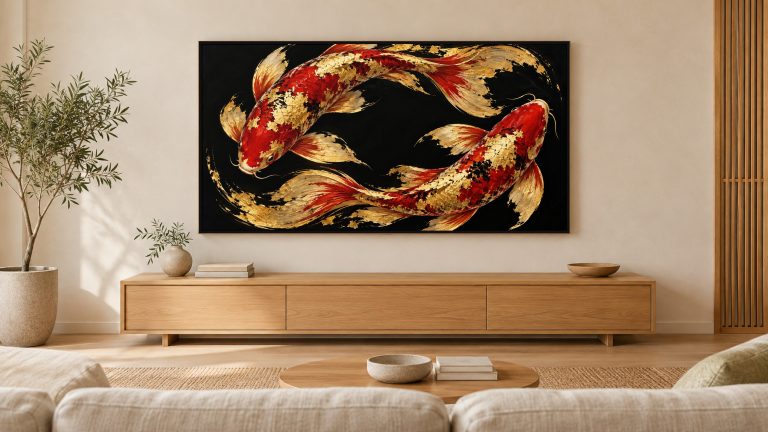 Black and Gold Koi | Frame TV ArtView on Etsy
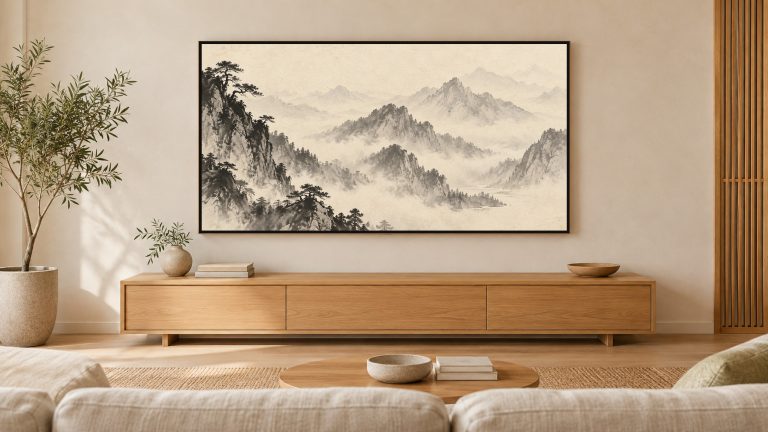 Misty Mountain Ink Landscape | Frame TV ArtView on Etsy
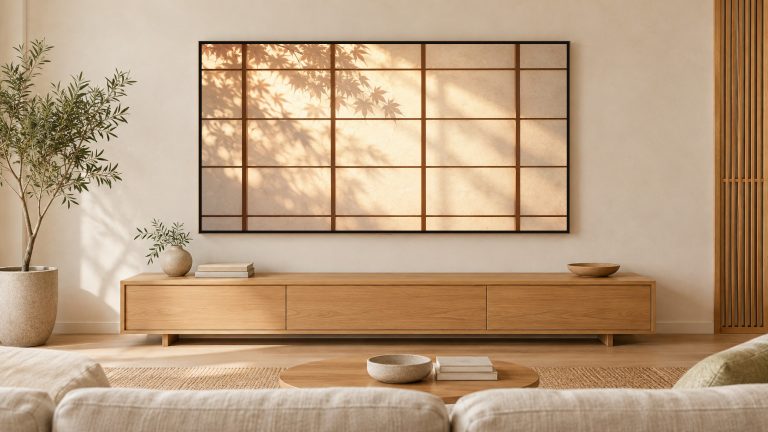 Shoji Light and Shadow | Frame TV ArtView on Etsy
Each piece is sold on Etsy as an instant download.
Browse 16:9 art for wide TV screens. Every piece also includes a 9:16 version for portrait screens.
Sources
Original sources checked October 20, 2026 (JST). Added sources and the LG/TCL photo instructions rechecked November 6, 2026 (JST). Manufacturer documentation only; no hands-on device testing. Numbered references identify the source of each documented action and specification.
- LG USA support: using LG Gallery+. Scope, account sign-in, Photos sources, Google account linking; does not document the complete personal-photo upload flow.
- LG USA support: Gallery Mode across webOS versions. Personal-photo instructions appear under webOS 3.5 / 4.0, not the webOS 4.5-and-later theme procedure.
- LG Canada: OLED65C5PUA specifications. Same named hardware model; Display Resolution: 4K Ultra HD (3,840 × 2,160). Canadian specification used only for the panel dimensions, not US service availability.
- Hisense USA: 65S7N CanvasTV product information. USB / Art Mode app capabilities and single-image / slideshow description. Indexed official text was available; a direct fetch returned an unpopulated product template, so these are capability statements, not a verified import tutorial.
- Hisense USA: 55S7N / 65S7N quick setup guide. PDF page 11 (printed page 10): remote controls for art access. PDF page 15 (printed page 14): models and 3840 × 2160 screen resolution. Text extraction checked; no full personal-photo import procedure in this guide.
- TCL support: T-Exhibition and personal-photo display. Supported model scope and distinction between dedicated art content and Google Photos in Ambient Mode.
- TCL North America: A300W product specifications. 65A300W panel dimensions, JPEG USB playback, personal gallery and mat feature descriptions.
- TCL North America: NXTFRAME product announcement. NXTFRAME naming, personal gallery and adjustable matting capabilities; no price or launch date reproduced here.
- LG USA: Gallery+ feature overview. Personal-image source categories; does not establish USB photo-import details.
- Hisense USA: model-specific 65S7N support. Official model support destination; document links were not fully populated in the fetched page.
- TCL support: setting a Google TV screensaver. Television-side Google Photos album-selection and confirmation sequence.
- Google TV Help: change the screensaver. English-language Google TV guidance; Google Photos source and album selection.
- Sony USA: Living Decor Google Photo theme ending. Affected model list and replacement Ambient Mode path.
- Amazon US help: Fire TV Ambient Experience. Personal Amazon Photos, feature availability check, and launch methods.
- Roku US support: using Backdrops. Personal uploads, account sign-in, Google Photos connection, and album selection.
- Panasonic UK support eHELP: TX-77LZ2000B document path. Printed pages 22 and 36: my Scenery, external USB content, controls and root-directory restriction. Model-dependent features.
- LG Germany: OLED55G69LS. Official full model number, 55-inch G6 identity, and 2026 model year; not a source for US service availability.
